 14 minutes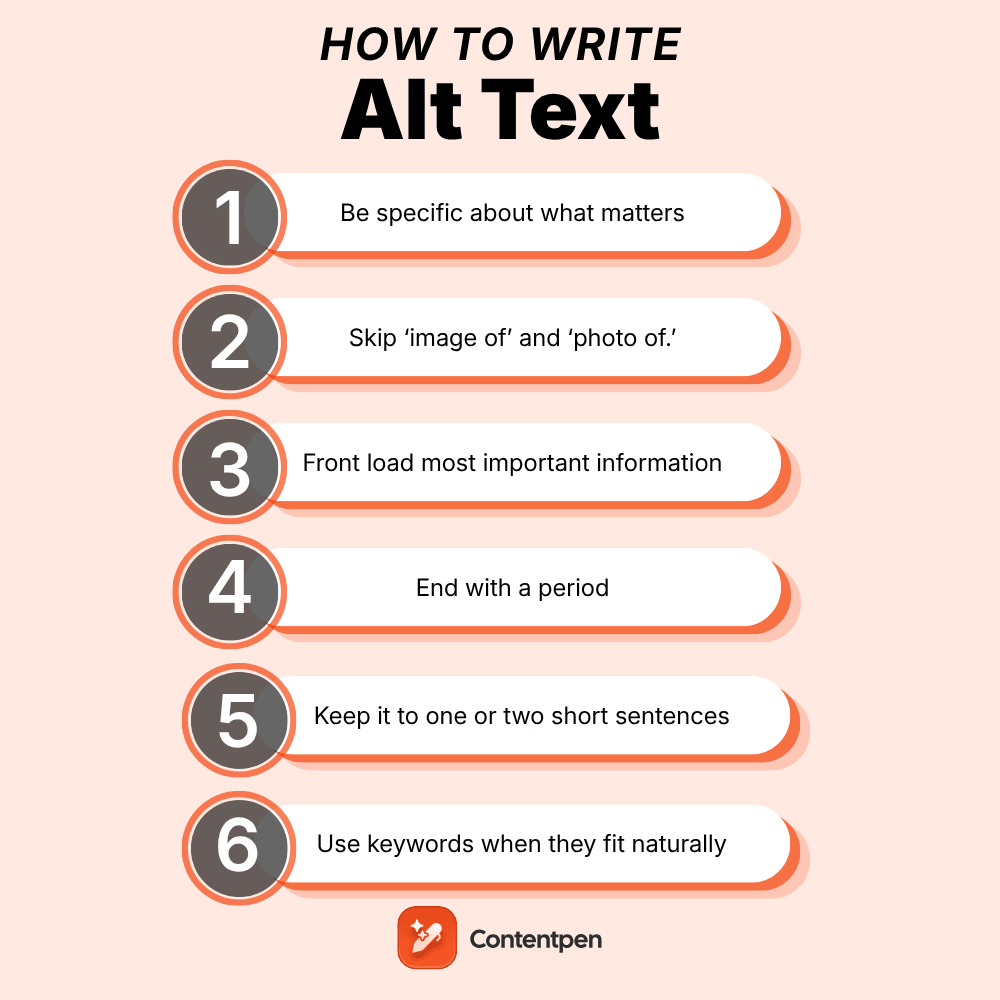
A lot of content teams know they should write alt text. Far fewer actually do it, or do it consistently well. The result is a site full of images that screen readers can’t describe, search engines can’t index, and visitors see as broken boxes when images don’t load.
Writing good alt text is not hard. It takes a few seconds per image and follows a small set of rules. The difficulty is knowing which rule applies to which image, understanding why context changes everything, and building the habit before publishing.
This guide covers practical tips for writing alternative text for all image types in 2026. It will also cover how Contentpen can help you with alt text so that your images are accessible to all types of readers.
So, let’s get started.
Table of contents
- Quick recap: What alt text actually is
- What to consider before writing alt text
- The context rule: Same image, different alt text
- Alt text best practices: The core principles
- How to write alt text for images based on various types
- Who should write alt text, and when
- The alt text decision tree: A quick reference
- Common alt text mistakes
- Testing your alt text before you publish
- How Contentpen handles alt text
- Final thoughts
- Frequently asked questions
Quick recap: What alt text actually is
Alt text is a short description inside an image’s HTML alt attribute. When a screen reader reaches an image, it reads this description aloud instead of the visual.
Browsers use alternative text to explain an image when it fails to load on a webpage. Search engines use the image description to understand what it is about. Therefore, using alt text in 2026 is non-negotiable for both humans and bots.
Let’s consider the alt text example below to understand how alternative text for images works:
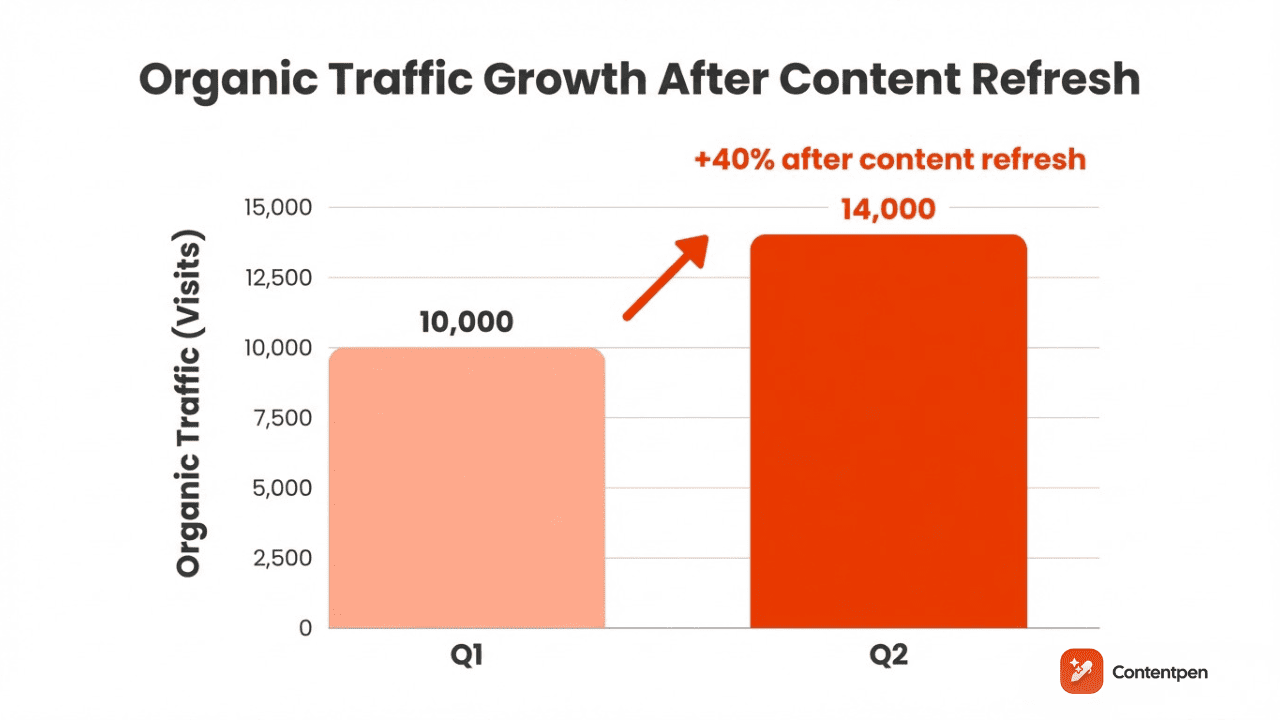
<img src=”data-chart.png” alt=”Bar chart showing a 40% increase in organic traffic from Q1 to Q2 after a content refresh.”>
The above line does three jobs at once: it serves accessibility, supports SEO, and provides a fallback for broken images.
According to the WCAG Guideline, all non-text content should have alt text that serves its purpose in explaining the visual. Doing so also makes your content inclusive for all types of audiences.
What to consider before writing alt text
Before touching the alt attribute, you need to answer one question: Does this image add information that a visitor would miss if the image were not there?
The mental test is to imagine removing the image entirely. If the page still makes complete sense without it, the image is decorative and does not need a description.
If removing the visual would leave a gap, for instance, a missing data point, an unclear reference, or a link with no label. Then the image is informative or functional and needs a description.
The techniques of writing alt text can change from one photo type to another, depending on the purpose the visual fulfils (more on this later).
The context rule: Same image, different alt text
This is the most important thing most alternative text guides skip entirely. The correct alt text for an image is not a fixed property of the image. It depends entirely on why you put it on that specific page.
Consider a photo of a campus building. In an article about spring weather on campus, the relevant alt text might be:
“Students sitting in brightly colored chairs outside Hollis Hall on a sunny afternoon.”

In an article about the history of that building, the alt text might be: “Hollis Hall, a red brick colonial building in the center of Harvard Yard.”
Same photo. Two completely different alt texts, because the reader needs different information in each context.
Tip: A good alt text answers the question: ‘What does a reader gain from this image, in the context of what surrounds it?’
This is also why AI-generated alternative text is unreliable as a final output. A model can describe what it sees in the image. But it cannot read your mind about why you included it in the first place.
Alt text best practices: The core principles
So far, we know the basics of alt text and how they change based on context. But how about actually writing them? Below are 6 key practical tips for writing alt text that will help you out.
1. Be specific about what matters, not everything
Describe the key subject, the action, and any details that are relevant to the page topic. You do not need to describe every element in the frame, just the ones that carry meaning.
Example:
Weak alt text: “People outside.”
Good alt text: “Three colleagues reviewing printed documents at an outdoor table.”

The second version tells a screen reader user something specific. The first tells them almost nothing.
2. Skip ‘image of’ and ‘photo of.’
We’ve previously discussed this in our ‘What is alt text’ blog as well. Do not use generic fillers in image descriptions.
Since screen readers already announce that they have reached an image element, starting with ‘image of’ or ‘photo of’ wastes the first words, which are the most crucial.
Therefore, you should start with the most important word. If the image shows a bar chart, start with ‘A bar chart.’ If it shows a founder, start with their name, designation, and relation to the content on the page.
3. Frontload the most important information
People using screen readers cannot skim the way sighted readers do. They hear alt text sequentially, and many will stop listening partway through.
Hence, you should make it a habit of writing useful alt text by putting the single most useful piece of information at the beginning.
Example:
Less effective: “In a modern office setting with large windows and plants in the background, a content manager reviews an SEO report on a laptop.”
More effective: “Content manager reviewing an SEO report on a laptop in a bright, modern office.”

4. End with a period
Screen readers pause slightly at the end of a sentence when they hit a period. Without it, the alt text runs directly into the next element, which makes it harder to follow.
This is a small detail that meaningfully improves the listening experience and makes your content more inclusive.
5. Keep it to one or two short sentences
Most images need a single sentence. Complex diagrams may need two. If you find yourself writing a paragraph, you need to stop and analyze whether the information belongs in the body copy or the image description.
Also, you should keep your alt text around 125 characters, though this is not a strict technical limit.
6. Use keywords when they fit naturally
You can write alt text for SEO if the image genuinely relates to your target keyword and a natural description includes that phrase. If you are forcing a keyword into an image description where it does not belong, leave it out.
Keyword stuffing in alternative text is a known spam signal and hurts your rankings rather than helping them.
How to write alt text for images based on various types
Alt text varies depending on the type of image involved.
Photographs and standard editorial images
When writing alt text for photographs and editorials, it is generally a good idea to describe the subject, the action, and any contextually relevant details. However, this formula can change from one photo type to another.
For instance, setting shots must describe what the scene communicates or its feel rather than the subject or action. Therefore, considering the purpose of a photograph is very important to describe it well.
To learn this in more detail, check out the table below for each image type and its good and bad alt text examples.
| Photo type | Weak alt text | Strong alt text |
| Team photo | ❌ A photo with a bunch of people | ✅ Four-person marketing team reviewing campaign results on a whiteboard |
| Portrait | ❌ Headshot of Jawwad Ul Gohar | ✅ Jawwad Ul Gohar, SEO content writer and author at Contentpen |
| Setting shot | ❌ Book on a chair | ✅ Cozy armchair with an open book resting on the seat and a blanket draped over the side. |
| Event photo | ❌ Panelist photo in a conference | ✅ Panelist Mr. Abraham at a content marketing conference, discussing AI writing tools on stage |
For photos of people, only mention identifying characteristics (race, gender, age, physical descriptors) when those characteristics are the reason the image was included.
Functional images: buttons, icons, and linked images
For any image that does something when clicked, the alt text must describe what will happen, not what the image looks like.
- An Instagram logo linking to a profile: “Visit the Contentpen Instagram page” – not just “Instagram logo.”
- A printer icon: “Print the event schedule” – not just “a printer icon.”
If a text label already sits next to the icon and they link to the same destination as the label, then the icon should use an empty alt attribute.
Charts, graphs, and diagrams
The goal with data visuals is not to transcribe every number, but it is to communicate the main takeaway.
To put charts, graphs, and diagrams into the users’ perspective, start by naming the chart type first, then summarize what it shows.
Example: “Line chart showing a 25% increase in quarterly website traffic from Q1 to Q2, with the sharpest growth in March.”
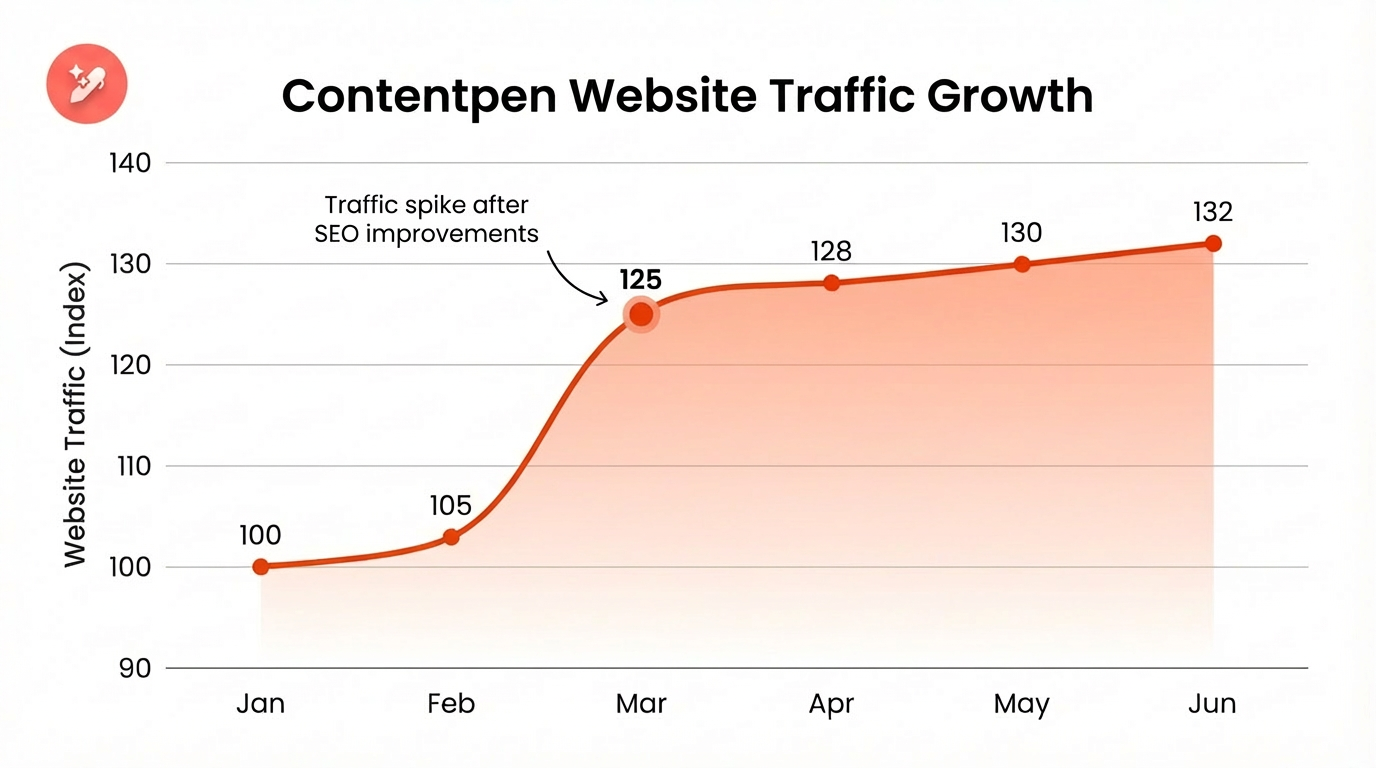
For complex diagrams where one sentence is not enough, pair short alt text with a full data table or detailed explanation in the body copy nearby. The alt attribute stays concise; the surrounding content carries the detail.
For infographics, summarize the core message. Individual data points belong in an adjacent text section and should not be stuffed into the alt attribute.
Images that contain text
Screenshots, infographics, logos, and illustrated quotes often contain words that are part of the image. Include any text that is important to understanding the image in the alt description.
Example: “Screenshot of the Contentpen SEO scoring dashboard showing a blog post getting a score of 83 out of 100.”
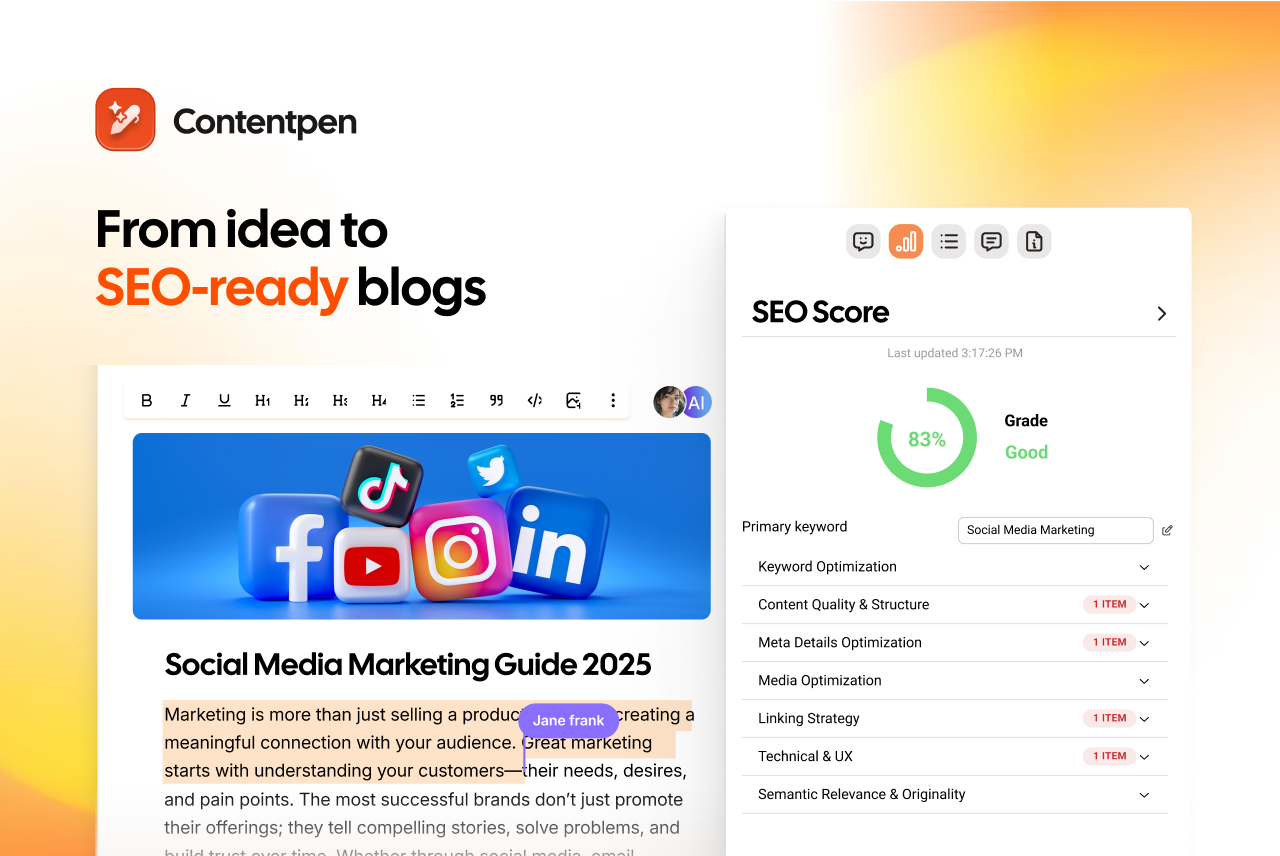
You do not need to transcribe every word in a dense screenshot. Just focus on what matters and what is crucial to convey to the audience.
Decorative images
Decorative images include stock photos used purely for visual texture, page dividers, background patterns, and any image that does not add information beyond what the text already says.
For these, use an empty alt attribute: alt=””. Do not write anything between the quotes. This tells screen readers to skip the element entirely.
Never omit the alt attribute altogether. If the attribute is missing, some screen readers will read the image file name aloud (e.g., “IMG_4892_FINAL_v3.jpg”), which can be disorienting, to say the least.
When possible, handle purely decorative images as CSS background images rather than HTML img tags. That keeps them out of the document structure entirely.
Who should write alt text, and when
This is a process question most teams never ask, and it causes most of the problems.
Alt text written long after publication is usually weaker than alt text written at the time the image was chosen. This is because the person who selected the image knows why they chose it at that moment. By the time the audit happens, that context is mostly forgotten.
Therefore, what we suggest is a better workflow:
- Content writers: Write alternative text for editorial images as soon as you draft the post, because this is when you know what the visual illustrates.
- Designers: Create alt text for icons, logos, and UI elements as soon as you finalize wireframes or design specs, not when the developer is implementing the assets on the site.
- Developers: Implement the alt text for the media as soon as you receive it from the design and writing teams.
Even though this workflow sounds too tiring, in reality, it isn’t.
Once you have the habit of writing/publishing alt text alongside your images, the whole process will barely take another second. And just like that, you’ll make your images more accessible and SEO-friendly.
The alt text decision tree: A quick reference
When you are looking at an image and are not sure how to approach it, this sequence of questions covers most situations that you might face:
- Does the page make full sense without this image? → Decorative. Use alt=””.
- Does the image do something when clicked? → Functional. Describe the action or destination.
- Does the image add meaning not in the surrounding text? → Informative. Describe what it communicates in context.
- Is the image very complex (dense chart, infographic, diagram)? → Write a short summary, then add a full-text explanation nearby.
- Is there text inside the image that matters? → Include it in the alt text.
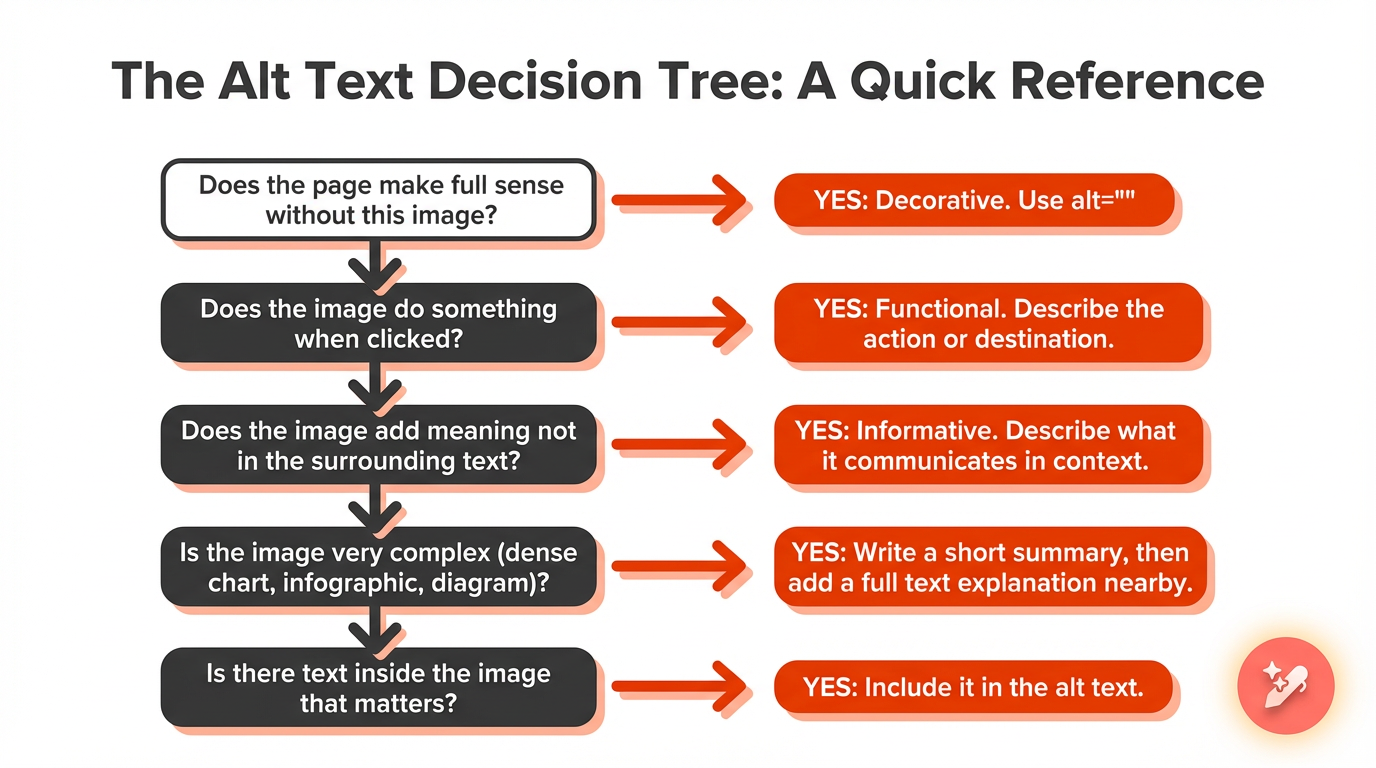
The above decision tree will help you decide what type of alt text you should use in every situation without any hassle.
Common alt text mistakes
Though writing alternative texts is easy, many content marketers and SEO teams commit the following mistakes that can be easily avoided.
| Mistake | Why it’s a problem | What to do instead |
| Using the filename as alt text | File names can be meaningless and off-putting to readers | Write a short description that matches the image and its context |
| Leaving the alt attribute out entirely | Screen readers read the file name aloud (IMG_4892_v3.jpg) | Always include alt=”” at a minimum |
| Reusing the same alt text on every image | Each image on the page has a different purpose. Identical descriptions break the listening flow | Write unique alt text for each image based on its role |
| Keyword stuffing | Looks spammy to search engines, frustrating to screen reader users | Use keywords only when they naturally describe the image |
| Leaving functional icons without alt text | Critical UI elements become invisible to screen reader users | Describe the action: ‘Search’, ‘Open menu’, ‘Download case study.’ |
| Copying the surrounding body text | Forces screen reader users to hear the same information twice | Use alt=”” if the image is redundant to the text |
| Writing too vague or too long | Single words give no context; long paragraphs are exhausting to listen to | Aim for one specific, context-driven sentence |
While realizing your common mistakes with alt text is essential, you still have one more thing to do.
Testing your alt text before you publish
Writing image descriptions is only half of the job. Testing it before the page goes live is the other half, and most teams skip it entirely.
To test out your alt text, use the following methods:
- Read it aloud in the context of the sentence or paragraph surrounding it. If it sounds out of place or adds nothing, revise it.
- Use a browser extension like WAVE from WebAIM. It overlays alt text on images so you can see every description in context without using a full-screen reader.
- Test with a real screen reader. NVDA (free for Windows 8.1 or above) and VoiceOver (Mac/iOS, built-in) let you navigate your page the way a blind or low-vision visitor would. Turn off the monitor and try to follow the content.
- Disable images in your browser to see what alt text displays in place of each image. This is the fastest way to check alt descriptions of images manually.
If possible, have someone with low or no vision test your pages before launch. Their feedback will surface problems that no checklist will ever catch.
How Contentpen handles alt text
Contentpen generates alt text automatically for every in-article and feature image as part of the content creation workflow.
It follows the best practices covered in this guide to create concise, context-aware descriptions that support both accessibility and image search indexing.
You can review and edit the generated alt text before publishing, and it ships directly to your CMS with one-click publishing.

Publish content directly to your CMS, without copy-pasting
Move from draft to live post in a single step. No hassle, no errors!
Try One-click Publishing →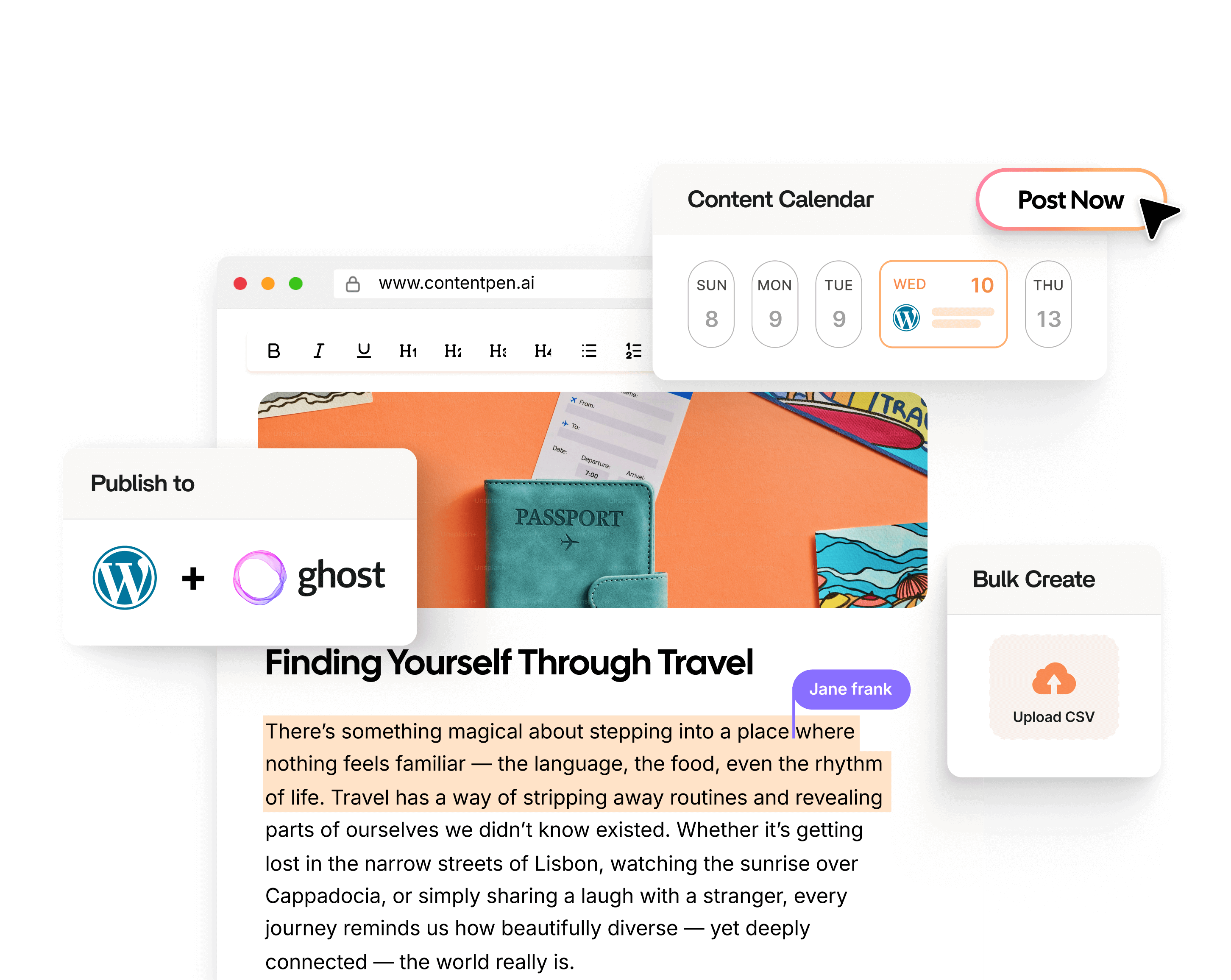
Our AI writing tool online ensures that there is no copy-pasting, no separate alt text sprint, and no missed images from your scope.
Final thoughts
Writing good alt text comes down to three habits: understand what type of image you are dealing with, describe what it communicates in the context of the page, and do it at the time the image is added.
The next time you add an image to a post, pause for ten seconds and apply the principles we discussed in this post. This small habit will make a meaningful difference in the inclusivity of your content and how well your content performs in image search.
If you are tired of manually adding and auditing alt text, try Contentpen today. Put your content production on autopilot and instantly enhance productivity.