 13 minutes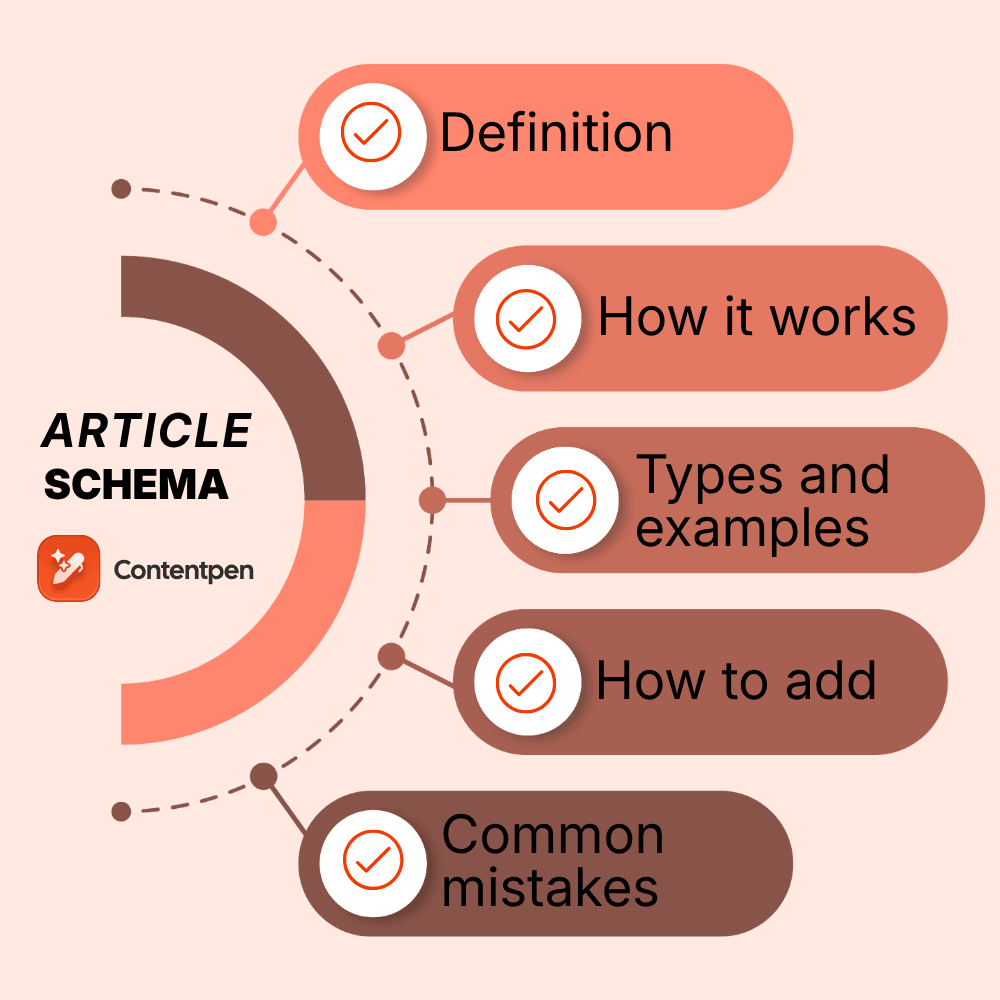
Don’t you just hate it when you publish a well-researched post, and Google shows it with an old date, your logo as the thumbnail, or a title it rewrote on its own? Most of the time, that happens because Google had to guess while building your SERP tile for the data it didn’t get.
Article schema takes the guesswork away. It is a short block of code that tells search engines exactly what your headline is, who wrote the piece, when it went live, and which image represents it.
This guide explains what article schema is, which of its three types to pick, and the properties Google actually looks at. You will also get two copy-ready JSON-LD examples, the easiest ways to add the markup, how to test it, and the mistakes that quietly break it.
So, let’s get started.
Table of contents
- Key takeaways
- What is article schema?
- What are the three types of article schema?
- Which article schema properties does Google recommend?
- Article schema examples in JSON-LD
- How to add article schema to your website
- How to test article schema
- Common article schema mistakes to avoid
- Does article schema help SEO and AI search?
- How Contentpen helps your articles show up right
- Final thoughts
- Frequently asked questions
Key takeaways
- Article schema is a type of schema markup (structured data) that labels a page’s headline, author, publish dates, and images so Google can show them correctly in search results.
- Google supports three article types: Article, BlogPosting, and NewsArticle. Use the most specific one that fits the page.
- Google has no required properties for article markup. It recommends headline, image, datePublished, dateModified, and author.
- Yoast SEO and Rank Math add Article schema to WordPress posts by default, so most sites only need to check and fine-tune it.
- Article schema won’t raise your rankings on its own, but it helps your result show the right title, image, and date.
What is article schema?
Article schema is a type of structured data, written with the schema.org vocabulary. It tells search engines that a page contains an article and describes its key details, including the headline, author, publish date, and images.

Think of it as the label on a book inside a large library. The book reads the same with or without it, but the label tells anyone scanning the shelf what it is, who wrote it, and when it came out.
Article schema is one of many types of schema markup, and one of the most widely used ones on the web. The schema.org Article type appears on more than 10 million domains, based on Google’s web index.
According to Google’s article structured data documentation, the markup can help Google “understand more about the web page and show better title text, images, and date information” in search results.
What are the three types of article schema?
Google supports three article schema types: Article, BlogPosting, and NewsArticle. They share the same properties, so the choice of using them depends on what the page represents.
Google’s structured data guidelines ask you to “use the most specific applicable type.” In other words, pick the type that describes your page most precisely.
BlogPosting and NewsArticle are narrower versions of Article, so a blog post should use BlogPosting and a news report should use NewsArticle.
Plain Article schema is the fallback for written content that fits neither category, but it should not be used as the default for every page.

| Type | Use it for | Good fits | Watch out for |
|---|---|---|---|
| Article | Editorial content that isn’t a blog post or news report | Evergreen guides, magazine features, help center articles | Switch to a more specific type when one fits |
| BlogPosting | Posts published on a blog | How-to posts, opinion pieces, company announcements | Don’t use it for news reporting, even on a blog |
| NewsArticle | Factual, timely reporting on current events | Breaking news, local reporting, press coverage | Keep it off evergreen posts and marketing content |
What about TechArticle, ScholarlyArticle, and other subtypes?
Schema.org also lists more specific article types, including TechArticle for technical posts, ScholarlyArticle for academic papers, Report, SatiricalArticle, and AdvertiserContentArticle for sponsored content. They are all valid schema.org types, and other platforms may read them.
Google’s article documentation only names Article, BlogPosting, and NewsArticle. If you use another subtype, run the page through the Rich Results Test to confirm if Google still detects it as an article. For more guidance, see our schema markup examples post.
Which article schema properties does Google recommend?
Google keeps its guidance short: “There are no required properties. Instead, add the properties that apply to your content.”
In practice, five properties do most of the work.
| Property | What to put in it | Google’s rules |
|---|---|---|
| headline | The article’s title | Keep it concise, since long titles may be cut off on some devices |
| image | URLs of images that represent the article | Crawlable and indexable, at least 50,000 pixels (width × height), ideally in 16:9, 4:3, and 1:1 ratios, and relevant to the article rather than a logo |
| datePublished | When the article first went live | ISO 8601 format with a timezone, such as 2026-10-12T09:00:00-05:00 |
| dateModified | When the article last changed | Same format as datePublished |
| author | The person or organization that wrote it | A Person or Organization with a name and a URL |
Author markup rules Google spells out
The author property gets the most detailed guidance, because it tells Google who stands behind the content:
- Include every author: Mark up each person shown as an author on the page.
- One author per field: List co-authors in separate author entries, never as “Jane Smith and Ali Khan” in one name.
- Name only: Leave out job titles, the publisher’s name, and phrases like “Posted by.” Use jobTitle or publisher property for that information.
- Correct type: Use the Person type for people and Organization for companies.
- Point to a profile: Add a URL to the author’s bio page or another page that identifies them, or use sameAs.
Optional properties worth adding
Beyond Google’s list, a few schema.org properties make your markup more complete:
- publisher: The organization that owns the site, with its name and logo.
- mainEntityOfPage: The URL of the page the article lives on.
- description: A one-line summary of the article.
- articleSection and wordCount: The category the piece belongs to and its length.
Article schema examples in JSON-LD
Google recommends JSON-LD for structured data, and it is the most common format on the web. According to W3Techs, 57.4% of websites have their structured data in JSON-LD. It sits in its own script tag, so it never touches the visible content of your page.
The two Article schema examples below use fictional sites to show you how they’re created. Swap in your own URLs, names, and dates and use them on whichever post you like.
Example 1: BlogPosting for a gardening blog
| <script type=”application/ld+json”> { “@context”: “https://schema.org”, “@type”: “BlogPosting”, “mainEntityOfPage”: “https://example.com/blog/plant-garlic-zone-6”, “headline”: “When to plant garlic in zone 6”, “description”: “A planting calendar for hardneck and softneck garlic in USDA zone 6.”, “image”: [ “https://example.com/images/garlic-1×1.jpg”, “https://example.com/images/garlic-4×3.jpg”, “https://example.com/images/garlic-16×9.jpg” ], “datePublished”: “2026-10-12T09:00:00-05:00”, “dateModified”: “2026-10-20T14:30:00-05:00”, “author”: { “@type”: “Person”, “name”: “Maya Ortiz”, “url”: “https://example.com/authors/maya-ortiz” }, “publisher”: { “@type”: “Organization”, “name”: “Fernhollow Garden Co.”, “logo”: { “@type”: “ImageObject”, “url”: “https://example.com/images/logo.png” } } } </script> |
What makes this example good to use:
- It supplies the same image in all three ratios Google asks for.
- Both dates carry a timezone offset (-05:00), so they can’t shift by a day.
- The author’s URL points to a bio page, which helps Google tie the post to a real person.
Example 2: NewsArticle with two reporters
| <script type=”application/ld+json”> { “@context”: “https://schema.org”, “@type”: “NewsArticle”, “headline”: “Harbor Point council approves protected bike lanes on Elm Street”, “image”: [ “https://example.com/photos/elm-street-1×1.jpg”, “https://example.com/photos/elm-street-16×9.jpg” ], “datePublished”: “2026-10-28T18:45:00-04:00”, “dateModified”: “2026-10-29T08:10:00-04:00”, “author”: [ { “@type”: “Person”, “name”: “Daniel Reyes”, “url”: “https://example.com/staff/daniel-reyes” }, { “@type”: “Person”, “name”: “Amy Natarajan”, “url”: “https://example.com/staff/amy-natarajan” } ], “publisher”: { “@type”: “Organization”, “name”: “Harbor Point Ledger”, “url”: “https://example.com” } } </script> |
Notice that each reporter gets a separate entry in the author array, and dateModified records the overnight update to the story.
How to add article schema to your website
How you add article schema depends on your platform. Check what is already there first. Start by pasting a published post into the Rich Results Test, because many sites already output Article markup without anyone setting it up.
1. On WordPress with Yoast SEO or Rank Math
Both Yoast and Rank Math plugins add Article schema to posts by default and fill it from your post title, author profile, dates, and featured image.
Go to each plugin’s settings to see which type of Article schema they’re adding to your posts:
- Yoast SEO: Go to Yoast SEO -> Settings -> Content types – > Posts, and see the article type under Schema. Options include Blog Post and News Article.
- Rank Math: Set the site-wide default schema under Rank Math -> Titles & Meta -> Posts, or change a single post from the Schema tab in its editor sidebar.
For most blogs, switching the default from Article to Blog Post is the only change you need.
2. Manually on custom-built sites
If your CMS has no schema setting, add the JSON-LD script to your article template so it fills in each post’s title, author, dates, and image automatically. Keep in mind that hardcoding a separate block into every post works for a few pages but gets tedious fast.
No access to your theme files? Add the script in Google Tag Manager as a Custom HTML tag, use variables like {{Page URL}} so each post gets its own details, fire it on DOM Ready for your blog URLs, and test the live URL in the Rich Results Test.
Treat Tag Manager as a fallback, though. Google sees the markup only after it renders JavaScript, and a Vercel study found that most AI crawlers, including GPTBot and ClaudeBot, don’t render JavaScript at all, so they would miss it.
3. With an article schema generator
Free schema generators online provide you with JSON-LD code that you can paste into your page instantly. They work for one-off pages, but check the output before you use it, as many tools leave out time zones, author URLs, and extra image sizes in the file.
How to test article schema
Run these checks after you add or change the markup:
- Rich Results Test: Enter your URL in Google’s Rich Results Test to see whether Google detects article markup and whether it flags errors.
- Schema Markup Validator: Use the Schema Markup Validator to check the full schema.org syntax, including optional properties Google doesn’t use.
- Match the page: Compare the markup with what readers see. Google’s guidelines say, “Don’t mark up content that is not visible to readers of the page,” so the headline, author, and dates should match the visible ones.
- URL Inspection: In Search Console, inspect the live URL to confirm Google can crawl it and that robots.txt, noindex, or a login wall isn’t blocking it.
Common article schema mistakes to avoid
Most article schema problems are small and easy to miss, and they rarely show up as errors in testing tools.
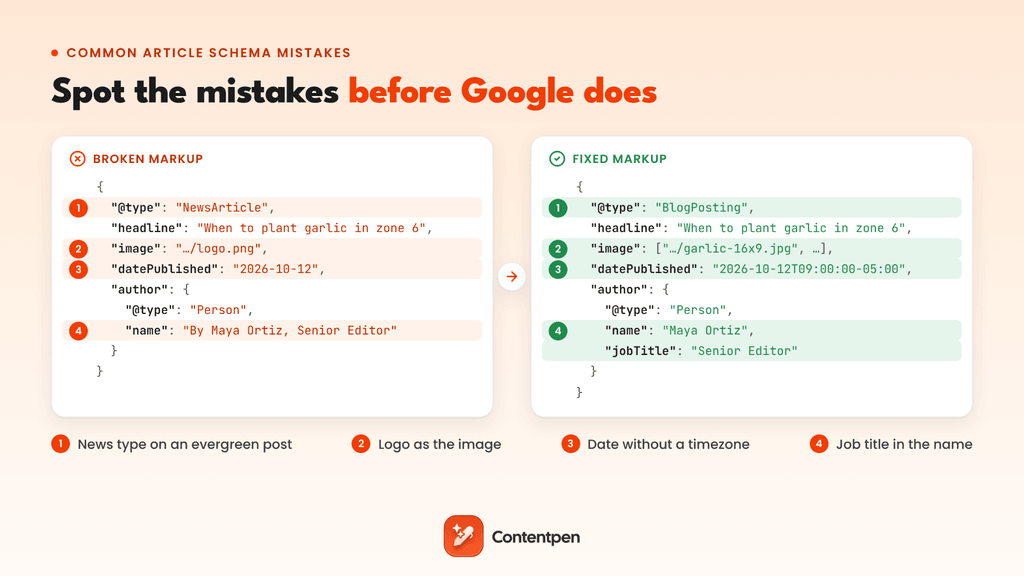
| Mistake | Why it’s a problem | Fix |
|---|---|---|
| Two article blocks on one page, from both the theme and a plugin | Google may read two different headlines or dates | Keep one source and turn off the other |
| “By Maya Ortiz, Senior Editor” in author.name | Google asks for the name only | Move the job title to the jobTitle property |
| Changing dateModified without editing the content | It misleads readers and search engines about content freshness | Update it only when the article changes |
| Schema dates that differ from the date shown on the page | Google may show the wrong date to the searcher or ignore both | Show the same dates in the markup and on the page |
| A logo or icon as the image | Google wants images that represent the article | Use the featured image in three ratios so Google can pick the best fit for each result |
| NewsArticle on evergreen blog posts | It describes the content as something it isn’t | Use BlogPosting or Article schema |
| Dates without a timezone | Google falls back to Googlebot’s timezone, so dates can shift | Add an offset such as -05:00 |
Does article schema help SEO and AI search?
Not as a direct ranking boost. Google’s John Mueller put it plainly in a 2025 post on Bluesky:
“Structured data won’t make your site rank better… Use it if your pages map to & are appropriate for any of those features.”
What article schema does is make your result accurate with the right title, thumbnail, and date. On a crowded results page, a recent date and a relevant image give searchers a reason to pick your link instead of many others.
AI search works in a similar way. For AI Overviews, Google’s AI features guide says you don’t need special markup or files, and the same goes for an llms.txt file. That said, clear authors and dates still help any system judge who wrote a page and how current it is.
For the research on schema and AI citations, read our guide to schema markup for AI search.
How Contentpen helps your articles show up right
Article schema only describes the article underneath it, so the content still has to earn the click and the citation.
That’s where Contentpen comes in. As an SEO and AEO tool, its AI agents research keywords, write SEO and GEO-optimized articles with clear headings, and create on-brand featured images that can double as your schema image.
With one-click publishing, posts go straight to WordPress, Webflow, Shopify, Ghost, Wix, EmDash, and BigCommerce, where your SEO plugin adds Article schema automatically.

Publish content directly to your CMS, without copy-pasting
Move from draft to live post in a single step. No hassle, no errors!
Try One-click Publishing →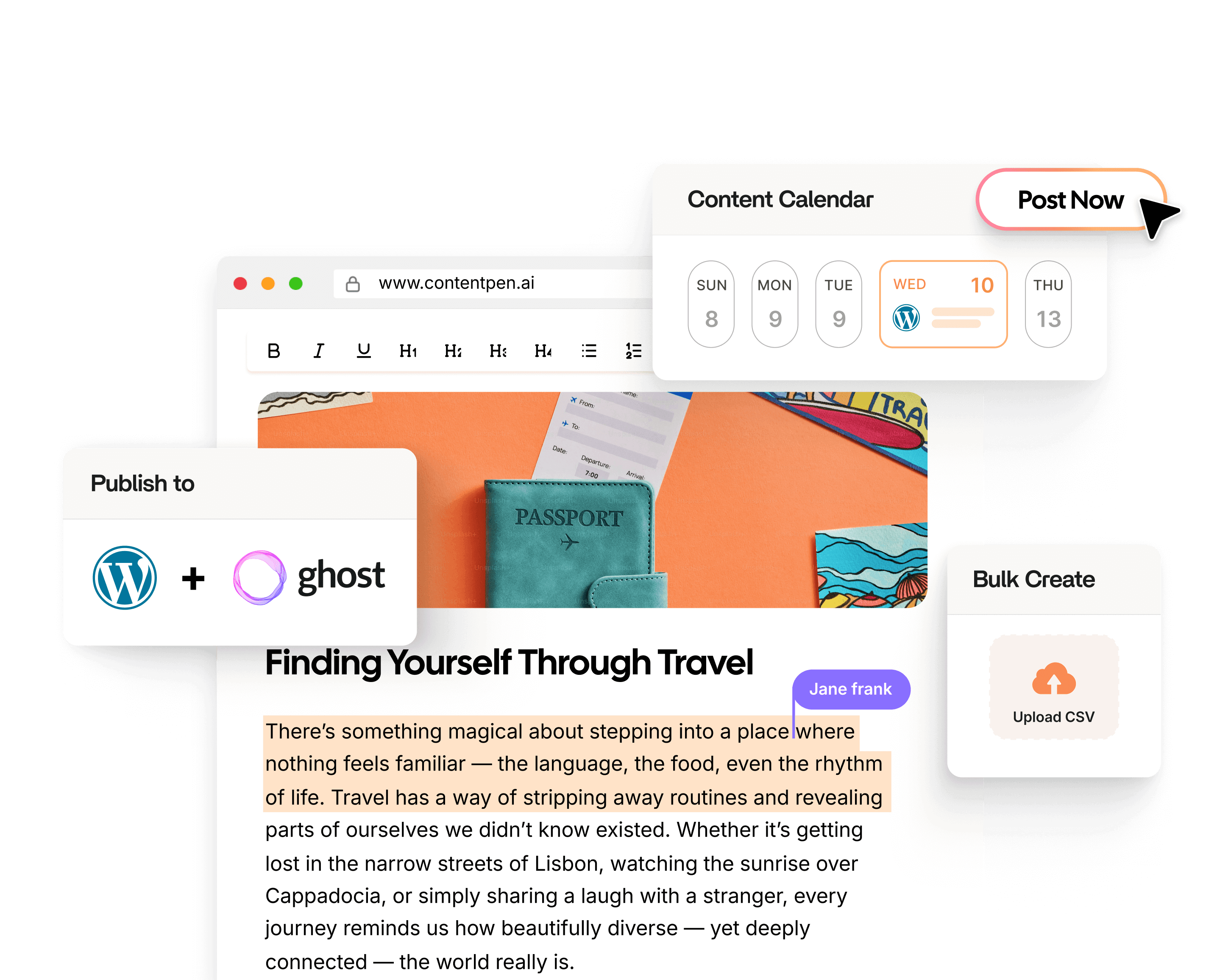
Contentpen doesn’t write JSON-LD itself, so keep Yoast, Rank Math, or your plugin in charge of the markup. Contentpen keeps the articles coming, and with Autopilot it can research, write, and publish on a schedule, with your approval before anything goes live.
Final thoughts
Article schema is one of the simplest structured data wins in 2026. There is one block of JSON-LD, five recommended properties, and three types to choose from. It won’t lift rankings by itself, but it makes sure Google shows your headline, image, and dates the way you intended.
Start by testing a few published posts, fix what’s missing, and let your CMS handle the markup from there.
Frequently asked questions
No. Google says there’s no markup requirement for Google News features like Top Stories, and readers can add you as a Google preferred source without it too. Article schema still helps Google read your headline, author, and dates, so it’s worth adding to news content anyway.
It can use both. WebPage describes the page as a whole, while Article or BlogPosting describes the main content on it. Link the two with mainEntityOfPage so search engines know the article is the page’s main subject.
No. Google’s guidelines say your structured data “must be a true representation of the page content,” and a product or category page isn’t an article. Use Product schema for product pages instead.
Set the ‘isAccessibleForFree’ property to false, and use hasPart with a cssSelector to point to the gated section. Google’s paywalled content guidelines explain that this markup helps it tell a paywall apart from cloaking.
Google has to recrawl the page first, which can take anywhere from a few days to a few weeks. Requesting indexing in Search Console’s URL Inspection tool can speed up the first crawl.
No. Open Graph tags control how a link looks when it’s shared on platforms like Facebook and LinkedIn, while article schema describes the page for search engines. Most sites need both, and W3Techs finds Open Graph on 73.8% of websites.

Jawwad
Jawwad Ul Gohar is an SEO and GEO-focused content writer with 3+ years of experience helping SaaS brands grow through search-driven content. He has increased organic traffic for several products and platforms in the tech and AI niche. As an author at Contentpen.ai, he provides valuable insights on topics like SEO technicalities, content frameworks, integrations, and performance-driven blog strategies. Jawwad blends storytelling with data-driven content that ranks, converts, and delivers measurable growth.
View all posts by this author