 15 minutes
Organization schema is a type of schema markup that tells Google who runs a website. It contains your official name, logo, contact details, and the profiles that belong to you on other sites.
You add it once, usually on your homepage or About page, and Google can use it to pick the right logo for your brand, fill in Knowledge Panel details, and tell you apart from companies with similar names.
This guide shows you which type to choose, which properties are worth filling in, a complete example you can copy, and the setup mistakes to avoid.
So, let’s get started.
Table of contents
- Key takeaways
- What is Organization schema?
- Organization or LocalBusiness schema – which one to choose?
- The properties that matter for Organization schema
- Organization schema example
- How to add Organization schema to your site
- Mistakes that confuse Google about your brand
- Does Organization schema help in AI search?
- Final thoughts
- Frequently asked questions
Key takeaways
- Organization schema describes your brand as a whole, not a single page, product, or post.
- Google has no required properties for it. Start with name, url, logo, and sameAs, then add contact and legal details you’re happy to make public.
- Use the most specific type that fits, such as OnlineStore, OnlineBusiness, or NGO. Shops and offices that customers can visit in-person need LocalBusiness schema instead.
- The markup helps Google understand and identify your brand, but it doesn’t guarantee higher rankings.
What is Organization schema?
Organization schema is a block of code, written in the schema.org vocabulary, that describes a company, nonprofit, school, or other organization in a format search engines can read and understand.
It describes facts that stay true across your whole site, and that’s what separates it from page-level markup. For instance, Article schema describes one post, and Product schema describes one item you sell.
Organization schema answers a bigger question: who’s behind all the site? It’s one of the most widely used types of schema markup for exactly that reason.
What it can change in Google Search
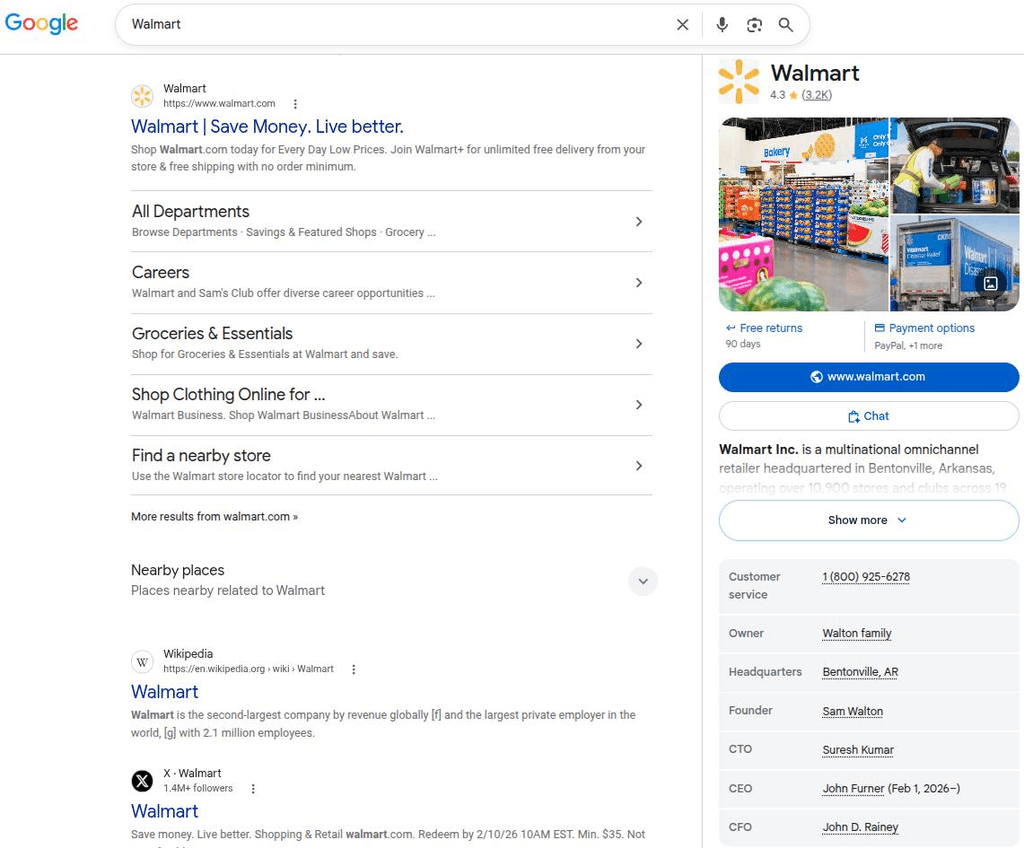
Google’s documentation says Organization markup helps it understand your organization’s administrative details and tell it apart from others in search results.
In practice, that shows up in four places:
- Your logo: Google can use the logo property when it shows your brand in search results and in the knowledge panel.
- Knowledge panel details: Facts like your founding date, address, or contact options can help fill in the panel people see when they search your brand name.
- Telling you apart: Your legal name, address, and official profiles help Google separate you from another company with the same name in a different city or industry.
- Store policies: Online stores can describe their return and shipping policies, which Google can show alongside contact details in merchant knowledge panels.
Please note that the markup makes you eligible for Google’s search experience features, but ultimately, it doesn’t guarantee your visibility there.
Some properties, like industry codes, never appear on screen at all. They work in the background to help Google match you to the right entity.
Organization or LocalBusiness schema – which one to choose?
Before you mark up your site, you should know the difference between Organization and LocalBusiness schema.

You should use Organization schema, or one of its subtypes, when you describe a brand as a whole or a business without a place customers can walk into.
However, you should use LocalBusiness schema, or one of its subtypes, when people visit you at a physical address, like a bakery, dental clinic, or hardware store.
To make this selection a bit simpler, check out the table below:
| Your organization | Use this @type |
|---|---|
| An e-commerce store that sells only online | OnlineStore |
| A SaaS company, app, or other online service | OnlineBusiness |
| A registered company with no closer match | Corporation |
| A nonprofit or charity | NGO |
| A school, college, or training provider | EducationalOrganization |
| A hospital group or healthcare network | MedicalOrganization |
| A newspaper, magazine, or news site | NewsMediaOrganization |
| A shop, office, or venue customers visit | A LocalBusiness subtype, such as Bakery or Dentist |
Schema.org lists many more, from SportsOrganization to ResearchOrganization. So be specific in your choice to help search engines read and index your site better.
If two types or subtypes seem to fit, choose the one that describes what customers get from you. A software company that’s registered as a corporation is still best described as an OnlineBusiness.
When you need both
Online brands with physical locations usually use both types of schema markup. The homepage carries Organization schema for the brand, and each location page carries its own LocalBusiness block with that branch’s address, phone number, and hours.
For example, a regional chain of three coffee shops describes the company once and each café separately.
Our guide to LocalBusiness schema walks you through the details, including opening hours and multi-location setups.
The properties that matter for Organization schema
Google lists no required properties for Organization schema, so every field is optional. You only add what’s accurate and public.
Most organizations get the biggest payoff from a handful of basics, then add contact and legal details where they apply.
#1: Start with the basics
To begin marking up your organization, start with these details:
| Property | What to put in it |
|---|---|
| name | The name customers know you by, exactly as it appears on your site |
| alternateName | Another name people use, such as an acronym or a former brand name |
| url | Your homepage URL |
| logo | A full URL to your logo image |
| description | One or two plain sentences about what you do and who you do it for |
| sameAs | URLs of your official profiles on other websites |
Your logo has a few rules of its own. Google asks for an image at least 112 by 112 pixels, at a URL it can crawl and index, in a format Google Images supports.
#2: Add contact and address details
These help customers reach the right team, and they give Google another way to confirm where you’re based:
- contactPoint: A specific way to reach a team, with a contactType such as “customer support” or “sales,” plus a telephone number or email.
- telephone: Your main number with the country code, for example +1-615-555-0187.
- email: A general inbox that someone actually checks.
- address: Your headquarters or mailing address, written as a PostalAddress.
Only list an address that’s already public. A remote-first company with no office can skip it and still have complete, useful markup.
#3: Include legal details and business identifiers
Most guides skip these fields, and they matter most when your name isn’t unique. For instance, if three companies are called “Tallyfinch,” a legal name and a registry number give Google a firm way to tell which one you are.
- legalName: Your registered name, such as Tallyfinch Software, Inc.
- foundingDate: The date you were founded, in YYYY-MM-DD format.
- numberOfEmployees: Your headcount, written as a QuantitativeValue.
- duns, leiCode, globalLocationNumber, iso6523Code: Official registry identifiers, if your company has them.
- vatID and taxID: Tax numbers, but only if you already publish them. Many EU companies show their VAT number in the site footer.
- naics: The North American Industry Classification System code for what you do.
Treat these as extras. Add the ones you can verify and are comfortable making public, and leave the rest out.
#5: Connect your official profiles with sameAs
The sameAs property lists the URLs of profiles that represent the same organization elsewhere. This includes your LinkedIn company page, YouTube channel, X account, Crunchbase record, and Wikidata or Wikipedia entry if you have one.
Each link says “this is also us,” which helps Google connect your website to the brand it already knows from other sources.

Three rules keep the list useful:
- Link only profiles you control or that are about your company. A founder’s personal account or a fan page doesn’t belong here.
- Leave out abandoned accounts. A profile nobody has posted on since 2019 adds confusion, not confidence.
- Use the same name and logo on every profile, so each one visibly matches your markup.
Don’t create a Wikipedia page just to fill this list. If you don’t have one, your active LinkedIn, YouTube, and Crunchbase profiles are enough.
#6: Enter return and shipping policies for online stores
If you sell online, Google also reads three store-wide properties on your organization: hasMerchantReturnPolicy for returns, hasShippingService for shipping, and hasMemberProgram for loyalty programs.
Google can show these policies in merchant knowledge panels next to your address and contact details.
They describe your store as a whole. However, each product page still needs its own Product schema for prices and availability.
Organization schema example
Here’s a complete example for Tallyfinch, a fictional invoicing app for freelancers, based in Nashville. It doesn’t have a storefront, so it uses OnlineBusiness schema.
| { “@context”: “https://schema.org”, “@type”: “OnlineBusiness”, “@id”: “https://www.example.com/#organization”, “name”: “Tallyfinch”, “alternateName”: “Tallyfinch Invoicing”, “legalName”: “Tallyfinch Software, Inc.”, “url”: “https://www.example.com/”, “logo”: “https://www.example.com/images/tallyfinch-logo.png”, “description”: “Tallyfinch is invoicing software that helps freelancers and small agencies send invoices, track payments, and follow up on late clients automatically.”, “foundingDate”: “2019-04-02”, “numberOfEmployees”: { “@type”: “QuantitativeValue”, “value”: 42 }, “email”: “[email protected]”, “address”: { “@type”: “PostalAddress”, “streetAddress”: “410 Harlow Street, Suite 300”, “addressLocality”: “Nashville”, “addressRegion”: “TN”, “postalCode”: “37203”, “addressCountry”: “US” }, “contactPoint”: { “@type”: “ContactPoint”, “contactType”: “customer support”, “telephone”: “+1-615-555-0187”, “email”: “[email protected]”, “availableLanguage”: [“English”, “Spanish”] }, “sameAs”: [ “https://www.linkedin.com/company/tallyfinch-example”, “https://www.youtube.com/@tallyfinch-example”, “https://x.com/tallyfinch_example”, “https://www.crunchbase.com/organization/tallyfinch-example” ] } |
This is the JSON-LD itself. On your page, it sits inside a script tag whose type is application/ld+json, usually in the head. Plugins add that wrapper for you. If you paste the code by hand, add the wrapper yourself.
What each part does in the code
- @context and @type: This tells Google the code uses schema.org vocabulary and that Tallyfinch is an online business.
- @id: Gives the organization a permanent ID, so other markup on the site can point back to it.
- name, alternateName, legalName: The brand name, a second name customers use, and the registered company name.
- logo: A full URL to a square logo larger than 112 by 112 pixels.
- address and contactPoint: The Nashville office, plus a support line that handles calls in English and Spanish.
- sameAs: Four official profiles that confirm the brand’s identity.
Every value matches something a visitor can see on Tallyfinch’s site, including the logo in the header, the address and support number in the footer, and the social icons in the menu. That match matters more than how many properties you fill in.
Copy this Organization schema template
Swap in your own details, change the @type to the one that fits you, and delete any line you don’t need:
| { “@context”: “https://schema.org”, “@type”: “Organization”, “@id”: “https://www.yourdomain.com/#organization”, “name”: “Your brand name”, “legalName”: “Your registered company name”, “url”: “https://www.yourdomain.com/”, “logo”: “https://www.yourdomain.com/path-to-logo.png”, “description”: “One or two sentences about what you do and who you serve.”, “foundingDate”: “YYYY-MM-DD”, “address”: { “@type”: “PostalAddress”, “streetAddress”: “Street and suite”, “addressLocality”: “City”, “addressRegion”: “State or region”, “postalCode”: “Postal code”, “addressCountry”: “Two-letter country code” }, “contactPoint”: { “@type”: “ContactPoint”, “contactType”: “customer support”, “telephone”: “+country-code-phone-number”, “email”: “[email protected]” }, “sameAs”: [ “https://www.linkedin.com/company/your-company”, “https://www.youtube.com/@your-channel” ] } |
When you delete a line, check the comma on the line above it. A stray comma at the end of a list is the most common reason a copied template fails validation.
How to add Organization schema to your site
Adding Organization schema requires you to follow these four steps:
Step 1) Pick one page (Your homepage or About page)
Google says you can place Organization markup on your homepage or on a single page that describes your organization, such as an About Us page.
Pick one, keep the full block there, and resist the urge to add it to every page on your site.
Step 2) Use a plugin, your CMS, or a generator
You have three practical ways to create and add Organization schema to your site:
- An SEO plugin: On WordPress, Yoast SEO and Rank Math both ask whether your site represents an organization or a person. Then, they collect your name, logo, and social profiles and output the markup for you.
- Your CMS’s custom code option: Most site builders let you add code to a single page’s head. Paste the JSON-LD there, wrapped in its script tag.
- An Organization schema generator: A schema markup generator turns a simple form into JSON-LD. It saves typing, but it can’t check your facts, so compare every value with your site before you publish.
Whichever route you take, check for duplicates afterward. Themes and plugins sometimes both output Organization markup. Because of this, you may end up with two blocks with different names or logos, which can confuse search engines about which one is truly yours.
Step 3) Connect it to your WebSite and Article markup
Your Organization block works best when other markup points back to it through the @id you set:
- WebSite schema: This markup sits on your homepage and tells Google your site’s name. Google uses it to choose the site name it shows in results, so keep it consistent with your organization’s name.
- Article markup: This markup exists on your blog posts and names a publisher. Point it to your organization’s @id instead of repeating the whole block on every post.
Here’s Tallyfinch’s WebSite markup, linked to its organization:
| { “@context”: “https://schema.org”, “@type”: “WebSite”, “@id”: “https://www.example.com/#website”, “name”: “Tallyfinch”, “url”: “https://www.example.com/”, “publisher”: { “@id”: “https://www.example.com/#organization” } } |
Now the homepage, the site name, and every article’s publisher refer to one entity, defined once. When the logo changes, you update it in one place.
Step 4) Test it with Google’s tools
After you are done creating an Organization markup, test it with some tools:
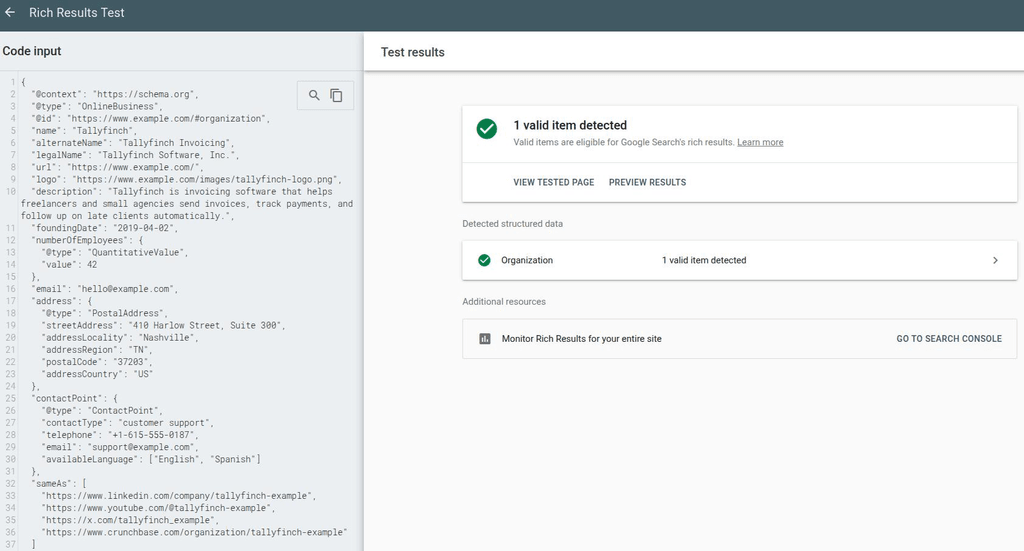
- Paste your URL or code into Google’s Rich Results Test. Look for an Organization item with no errors.
- Run the same code through the Schema Markup Validator. This schema validator checks every schema.org property, including ones Google doesn’t use for rich results.
- After you publish, open URL Inspection in Google Search Console and run a live test to confirm Google can crawl the page and sees the markup.
Warnings about missing optional fields are fine if you don’t have that information.
Here’s the result for our made-up brand Tallyfinch’s Organization schema markup code with Google’s Rich Results Test.
Mistakes that confuse Google about your brand
Most problems with Organization schema aren’t syntax errors. They’re mismatches between the markup and reality.
Watch out for these mistakes:
- Using a generic type of schema: Implementing a plain Organization schema for an online store, or for a dental clinic that should use the Dentist schema subtype, is a mistake.
- Adding names that don’t match: “Tallyfinch Inc.” in the markup, “Tallyfinch” on the site, and “Tallyfinch App” on LinkedIn is a consistency issue that may compromise your online visibility.
- Broken or borrowed sameAs links: Using deleted accounts, a founder’s personal profile, or a page someone else runs in the sameAs property confuses search engines about which pages are yours and which aren’t. This sets up a falsified online footprint of your brand, which may take a while to rectify.
- A logo Google can’t use: A relative path, an image blocked by robots.txt, or a white logo that disappears on a white background are all ways to lose out on visibility and building brand authority online.
- Markup on every page, or twice on one page: Copies spread across templates, or a theme and a plugin each adding their own block of Organization schema, is also a mistake that you should avoid committing.
One quick check catches most of these. Open your homepage, your markup, and your LinkedIn page side by side, and fix anything that doesn’t match right there and then.
Does Organization schema help in AI search?
Yes and no. While Organization schema does help machines understand who you are, it isn’t a shortcut into AI answers.
Google says there’s no special structured data that you need to add to appear in AI Overviews or AI Mode.
Where Organization schema earns its place is consistency. When your site, your markup, and your profiles all describe the same brand the same way, AI tools have fewer chances to confuse you with someone else. This leads to better branding overall, instilling trust within consumers about who you are and who they’re shopping with.
Our guide to schema markup for AI search covers the wider picture in detail.
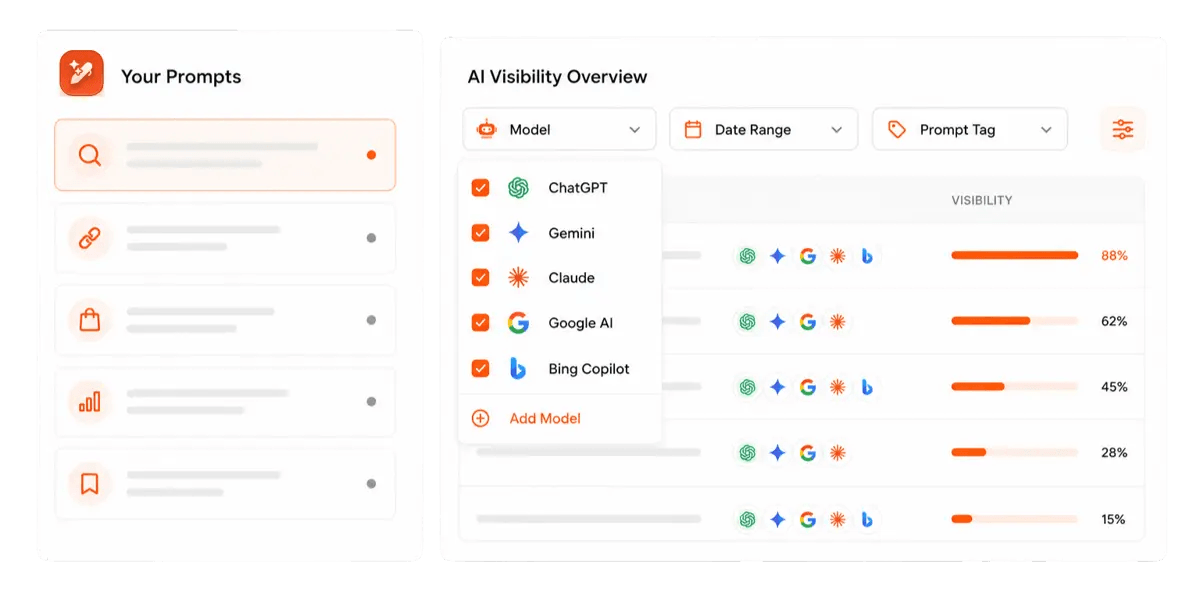
The only way to know how AI tools describe your brand is to check. An AI visibility tool, like the one from Contentpen, shows whether AI answers mention you for the questions your customers ask, and which sources they cite instead of you.

Find your brand in AI search

Track AI citations, share of voice, and brand sentiment
Find the top sources driving citations
Final thoughts
Think of Organization schema as your brand’s ID card for machines. It takes an afternoon to set up, then sits quietly on your homepage doing its job.
When you rebrand, move offices, change your logo, or open a new social account, update the markup the same day you update the site.
Start with name, URL, logo, and sameAs properties, test it, and add the rest as you go. Then put your energy into the content that makes people search for your brand in the first place.
That’s where Contentpen helps. It’s an SEO and AEO tool in one, with AI agents that research, write, and publish articles to help you rank on Google and get cited in AI answers.
Write content that’s built to rank, not just read
Create search-optimized blogs aligned with SEO and GEO signals, so your content performs well across search and AI-driven discovery.
Try SEO Blogging FREE →
Frequently asked questions
In business, the 7 common types of organizations are sole proprietorships, partnerships, LLCs, C corporations, S corporations, nonprofits, and cooperatives. Schema.org sorts organizations by what they do instead, with types like NGO and EducationalOrganization.
The Tallyfinch block above is one. Others include Product markup for items you sell, Article markup for blog posts, and Event schema for dates and venues. You can see more side by side in our schema markup examples post.
Yes. Google’s search gallery still lists more than two dozen features that rely on structured data, including organization logos, products, events, and job postings. Google has retired some, like FAQ schema and HowTo rich results, so focus on types it still supports and on markup that describes your business accurately.
Not directly. Google has said structured data isn’t a general ranking factor. It helps Google understand your brand and makes you eligible for features like your logo in results, which can make your listing easier to recognize and click.
Use Person if the site represents an individual, such as a consultant, author, or creator who doesn’t trade under a company name. Switch to Organization once customers know you by a business name. Yoast and Rank Math both ask you to choose one during setup.
Yes, when it describes different organizations, such as a parent company and its subsidiaries. Give each one its own @id and connect them with parentOrganization and subOrganization. What you want to avoid is two conflicting blocks for the same company.

Jawwad
Jawwad Ul Gohar is an SEO and GEO-focused content writer with 3+ years of experience helping SaaS brands grow through search-driven content. He has increased organic traffic for several products and platforms in the tech and AI niche. As an author at Contentpen.ai, he provides valuable insights on topics like SEO technicalities, content frameworks, integrations, and performance-driven blog strategies. Jawwad blends storytelling with data-driven content that ranks, converts, and delivers measurable growth.
View all posts by this author